The Zimbra instance deployed by CG66 relies on a server configuration whose version directly determines which customization options are available to users. Before changing any preferences, identify which settings the administrator has locked and which remain under your control. Changing a theme or filter without taking these restrictions into account can produce inconsistent results—or no visible effect at all.
Check the Zimbra version and administrator restrictions before customizing
Zimbra 10, which continued to receive patches in 2025, does not have the same interface as earlier versions that are still in use in some local authorities. An option described in a general tutorial may not appear on the CG66 instance if the administrator has disabled it or the server is running an older version.
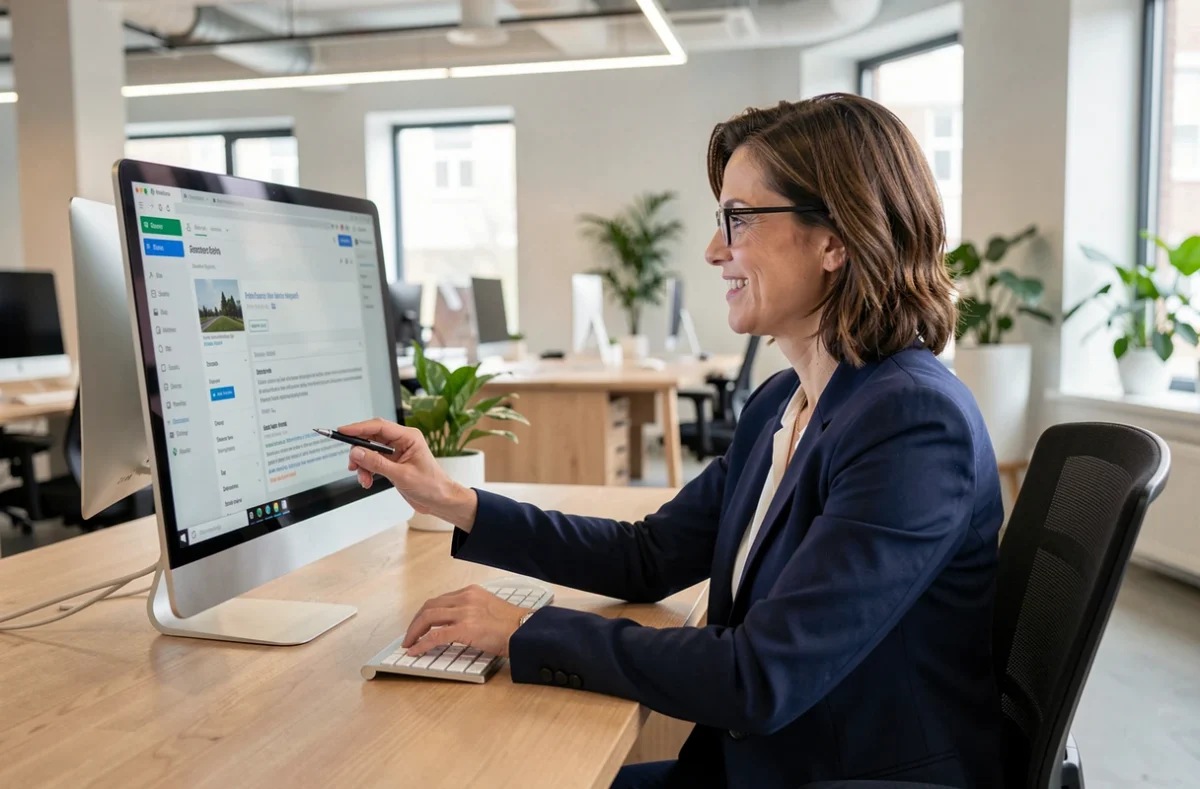
To identify your version, sign in to webmail and hover over the “About” link in the lower-left corner of the screen. The build number displayed tells you which major version you are using. If the link is missing, the department’s IT department has hidden this information.
We recommend contacting the administration team before changing settings related to delegated access and shared mailboxes, since permissions in a local authority can change whenever someone moves to a new position. A personal setting on a shared mailbox could block a colleague’s access without warning. Some guides explain how to easily customize Zimbra CG66 and cover these preliminary checks.

Configuring Zimbra CG66 email filters: beyond basic sorting
Filters are the most underused customization tool. Most staff simply sort messages by sender, even though Zimbra’s filter engine supports much more precise combinations of conditions.
Create an effective multi-condition filter
In the Preferences tab, select the Filters page, then click “Create Filter.” Each rule can combine multiple conditions using the “All” or “Any” operator. For CG66 users, the benefit is being able to combine the sender’s address with a keyword in the subject line and the presence of an attachment.
For example, a staff member who receives automated notifications from a business application and messages from their manager sent from the same service address can separate the two streams. Simply add a condition for a string in the subject line of the automated message to redirect those notifications to a dedicated folder.
Filter order and common pitfalls
Filters run from top to bottom and stop at the first match, unless you uncheck the “Do not process additional filters” option. A broad filter at the top of the list can catch messages that should have been handled by a more specific rule below it. Reorder the filters by moving the most specific ones to the top.
- Put filters targeting a specific sender and a keyword in the subject line at the top of the list.
- Filters based only on a sender domain (everything from @cg66.fr, for example) should stay at the bottom.
- Test each new filter by sending yourself a message that meets its conditions, then check the destination folder before putting the rule into production.
Customize the Zimbra email display and view
The Zimbra interface offers two main display modes: Conversation view (which groups messages into threads) and Message view (one message per row). To switch between them, click the “View” menu in the inbox’s top bar, then select the mode you want.
Conversation view works well for long exchanges involving several people. Message view is better when handling a high volume of short emails or notifications, because you don’t have to expand each conversation to find the latest message.
Reading pane and display density
By default, the reading pane appears to the right of the message list. On the standard desktop screens provided in the department’s offices, moving the pane to the bottom frees up enough width to read long subject lines. You can find this setting in Preferences, on the Mail page, under “Message Display.”
Reducing the font size by one step from the default lets you see more lines without scrolling. This setting is in Preferences, on the General page, under Appearance. Note that it applies to the entire interface, not just the email list.
Zimbra CG66 calendar: view settings and notifications
The calendar uses the same preferences system as email, but has specific options that can make a real difference to everyday usability.
In Preferences, on the Calendar page, change the default view from “Work Week” to “Full Week” if you manage weekend events (on-call shifts, departmental cultural events). The time zone, normally set to Europe/Paris, should not need to be changed for CG66 use.
- Enable browser notifications instead of Zimbra pop-ups: they remain visible even when the webmail tab is in the background.
- Set a default reminder time that suits your schedule (most staff benefit from changing the default to a shorter reminder).
- For calendars shared between departments, check that your permissions still match your current role, especially after an internal transfer.
Security of content received in the calendar
A calendar invitation can contain active content, just like an email. Security patches are handled by the administration team, but as a user, always decline invitations from unknown senders. Zimbra displays the organizer’s full address in the event details: check it before accepting.
All the settings described here depend on what the CG66 administrator makes available. A setting grayed out in the interface has been locked at the server level. In that case, only a request to the IT department can unlock it. Keep this restriction in mind before looking for a bug where the issue is simply an enforced security policy.